Showing posts with label SAP MM. Show all posts

Wednesday, September 18, 2013

STEPS HOW TO PRINT PHYSICAL INVENTORY DOCUMENT IN SAP IM

MI21 – Print Physical Inventory Document
PROCEDURAL STEPS
Menu Path
Logistics ® Materials Management ® Physical Inventory ®
Physical Inventory Document ® Archive® 
MI21– Print
Transaction Code
MI21


Perform the following steps of how to print Physical Inventory Document using the information below:

1.       Double-click on MI21 As per below screenshot


You need to fill the following field as per your requirement to be processed:
Field Name
Description
Values
Physical inventory document
Alphanumeric key uniquely identifying the document.
Example: 100000010
Plant
Plants name
Example: TES1
Storage Location
Storage location at which the physical inventory is carried out.
Example: TE01


Then click on execute button


Select your Output device as UG.Printer.
Next click on Print Preview  and system will display print preview.


Then click on Print 


4 EASY STEPS TO PERFORM HOW TO CREATE PHYSICAL INVENTORY DOCUMENT MI01 IN SAP MM INVENTORY MANAGEMENT

MI01– Create Physical Inventory Document  

Menu Path
Logistics ® Materials Management ® Physical
 Inventory ® Physical Inventory Document ® 
MI01 – Create
Transaction Code
MI01


Perform the following steps of how to Create Physical Inventory Document using the information below:

1.     Double-click on MI01 As per given in below screen
2. You need to fill the following field as per your requirement to be processed:


Field Name
Description
Values
Document date
The document date is the date on which the original document was issued.
Example: 18.09.2013
Planned count date
Indicates the date on which the physical inventory count is to take place.
Example: 18.09.2013
Plant
Enter the number of the plant in which you want the physical inventory to be carried out.
Example: TES1
Storage Location
Enter the number of the storage location for which the physical inventory will be performed.
Example: TE01

3. Click on ENTER  and following screen will come with below fields: 


You need to fill the following field as per your requirement to be processed:
Field Name
Description
Values
Material
Alphanumeric key uniquely identifying the material.
Example: TEST 1  , TEST 2 etc.

Note: in this way you can put numbers of material to create a physical inventory document.
4. Click on save and system will display following document number:


4 EASY STEPS TO PERFORM HOW TO DO GOODS RECEIPT OF PURCHASE ORDER USING MIGO IN SAP MM PURCHASING

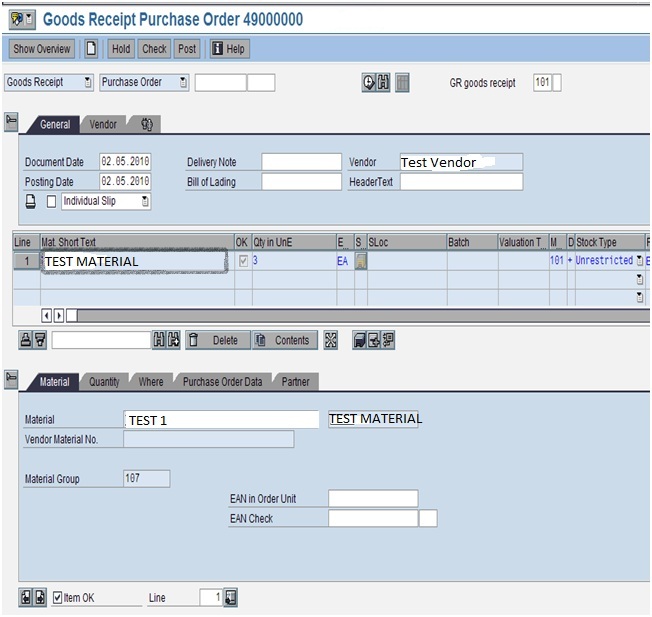
1. Open T-Code MIGO– Goods Receipt Purchase Order


  PROCEDURAL STEPS
Menu Path
Logistics ® Materials Management ® Inventory Management ® Goods Movement ® Goods Receipt
® For Purchase Order– MIGO
– PO Number Known
Transaction Code
MIGO

Perform the following steps of how to goods receipt purchase order
using the information below:


2. Double Click on MIGO given on above screenshot.

3. You need to fill the following field as per your requirement to be processed:
Field Name
Description
Values
Purchase Order number
Example: 490000XXXX
Click on enter and following screen will come with below information:


Click / Check on the item ok field  and click  check button

If no error then system will show following message: Document in O.K.

4. Click on Post  button and system will show the following message:


Goods ReceiptPosted Successfully


SAP Warehouse Management WM related Terms

Warehouse Warehouse is client specific entity and is attached to one or several plants and Slocs. Can be shared across companies. At least one warehouse is required to perform WM transactions.

Storage Type - Only relevant if WM module is in use. Each of the warehouse facilities or areas that make up a warehouse complex can be defined as a storage type, e.g. cold storage, hazardous area etc. Storage types can be attached to one or several warehouses.

Storage Section - Subdivision of a storage type. A storage section usually includes all bins that have certain characteristics in common, e.g., bins for ‘fast-moving items’.

Storage Bin - Each storage type and storage section consists of a row of storage spaces that are referred to as storage bins.

Quant - Serves to perform inventory management of a material at the storage bin.

Tuesday, January 31, 2012

MRP: PR to PO Conversion in SAP MM

MRP: PR to PO Conversion

Go to Transaction SU3 and under Parameters Tab find the Parameter ID "EVO" and check if any value is assigned. If so, make a note of the value.
Now go to transaction SPRO
Click on SAP Reference IMG -> Material Management -> Consumption-Based Planning -> Procurement Proposals --> Define Conversion of Purchase Requisition into Purchase Order (as shown below)


Following screen appears:

 
Check for the value we have noted earlier (the value of the parameter EVO in SU3). Select the read and check the check boxes appropriately.  We have to select at least one of the check boxes from RefPRs or A/P PR to have all all items copied to PO. Please use the F1 help for detailed information on the check boxes.


SAP MM Table Links

SAP MM Table Links


Deactivation/Deleting a Movement Type in SAP

Deactivation/Deleting a Movement Type

Solution 1 (Preferred):
  • Go to Transaction OMJJ
  • Select the Movement type to be activated
  • Remove all the transaction codes mentioned against this movement type under allow transaction tab.
Solution 2:
Consider this solution only if the above solution doesn't work.
Delete the movement type from the standard table. Ensure that you really don't want to use this movement type before deleting the entry or would never want to recreate the movement type. 
It is possible to recreate the deleted movement type, but needs to be imported either from the client 000 or from the client this movement type is not deleted. You can not manually create/recreate the movement types in the standard SAP number range by creating them again.

Setting up the Release Procedure at item level for the Purchase Requisition in SAP MM Config


Setting up the Release Procedure at item level for the Purchase Requisition in SAP MM Config

Scenario:
This tutorial focuses on setting up the release strategy at item-level instead of overall release 
Procedure
Go to transaction SPRO => Materials Management =>Purchasing => Purchase Requisition => Define Document Types  


Following screen appears:  


Ensure that for the required document type, the field OverReqRel is unchecked. 
Now go to transaction SPRO => Materials Management =>Purchasing =>Purchase Requisition =>Release Procedure =>Procedure with classification =>Set up Procedure with Classification 

  
Following screen appears:

Now click on Release Group. 
In the following screen, uncheck the field OverReqRel for the corresponding Release group and save your entries.